Introduction
LUI, short for Leeveel UI, is a reactive, declarative UI framework for Unity built on top of Unity UI Toolkit. Inspired by React.js and Tailwind CSS, it lets you build fully code-driven interfaces with reusable components, utility-style classes, responsive layouts, and a fast iteration workflow.
LUI is designed to be rapid, configurable, modular, and performant. It also includes theme support, allowing you to customize the look of your UI and switch themes at runtime, such as changing between dark and light modes.
What LUI Is
LUI lets you describe Unity UI Toolkit interfaces with C# node trees very similar to React.js and allows you to style it with utility-style classes.
public sealed class MainMenuComponent : LuiComponent
{
    private readonly LuiSignal<int> _clicks = new(0);

    public override LuiNode Render()
    {
        return Lui.Div("w-screen h-screen flex flex-col items-center justify-center gap-4 bg-slate-950",
            Lui.Text("Leeveel UI", "text-3xl font-bold text-white"),
            Lui.Text($"Clicked {_clicks.Value} times", "text-lg text-slate-300"),
            Lui.Button("+1", "px-6 py-3 rounded-lg bg-primary hover:bg-blue-400 active:scale-95 text-white transition",
                () => _clicks.Value++)
        );
    }
}
The framework renders this node tree into UI Toolkit VisualElement objects. On later
renders it diffs the new tree against the mounted tree and patches only what changed.
LUI is inspired by React and Tailwind:
- Components return UI descriptions from
Render(). - Reactive signals trigger rerenders.
- Utility class strings style elements.
- Variants like
hover:,active:,focus:,md:,portrait:, andlandscape:compose. - Keyed lists preserve identity.
- Memoized subtrees can skip rebuilds when dependencies do not change.
Quick Start
Add LUI into your scene
Prefab
- Drag
Assets/Leeveel/Lui/Prefabs/LUI Renderer.prefabinto the scene. - Add or assign your
LuiComponentas the renderer’s root component. - Enter Play Mode or enable editor preview.
Create your first component
Menu
Right click in your Project > Create > Leeveel > Lui > Component Script
Mount your Component
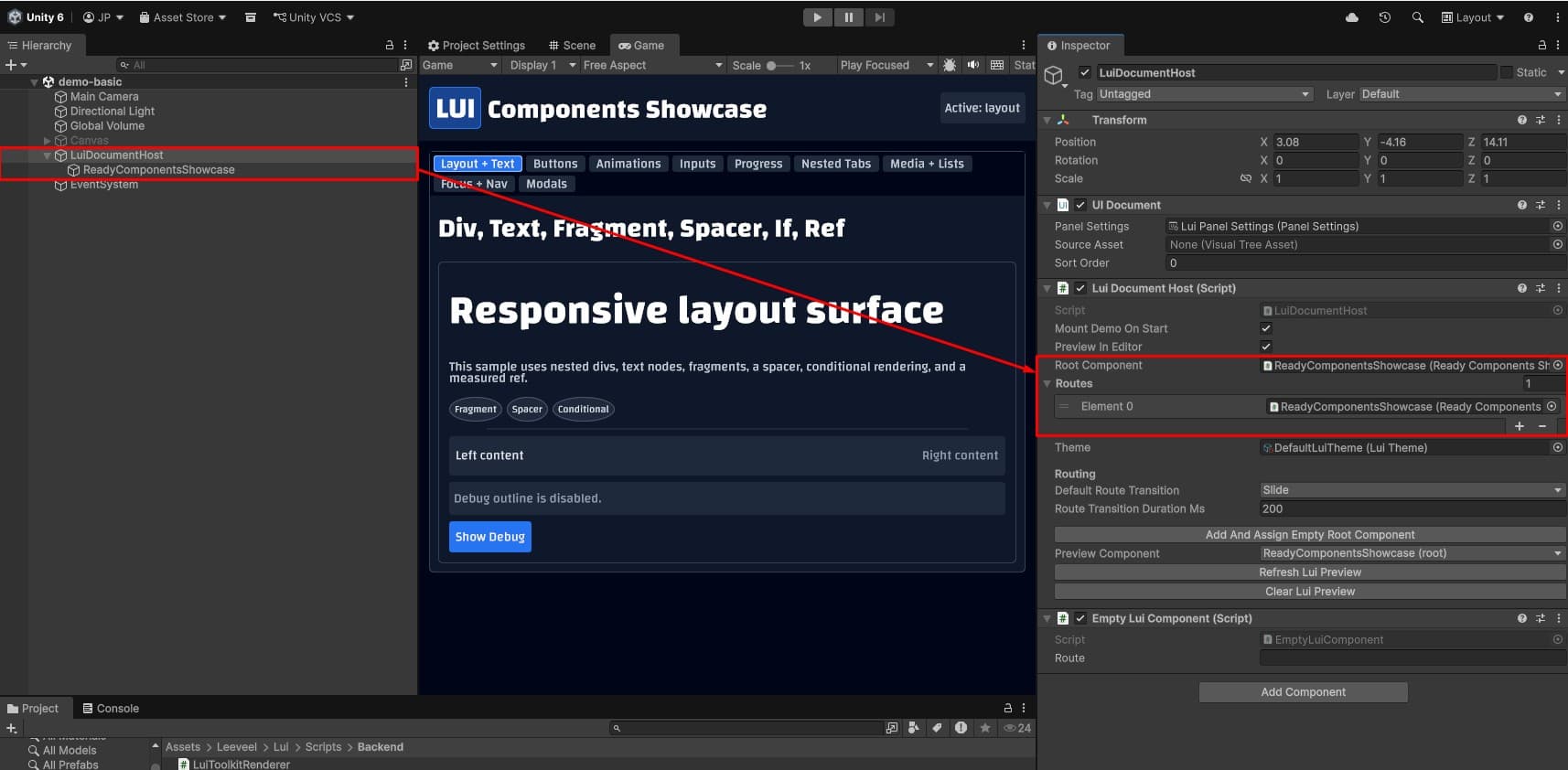
- Either create a new GameObject and assign your component on it or simple drag & drop the component into the scene (preferably as a child on the LuiDocumentHost just for being organized)
- Add the GameObject in the
Lui Document Hostin bothRoot ComponentandRoutes. - Optionally, click
Preview in Editorto view your component in editor, in case you don’t see it clickRefresh Lui Preview